
How To Set Spawn Point In Minecraft for Comfy Respawns?
So you died in a cave in the vast realm of Minecraft. Again. And instead of popping back up near your cozy base, you’re standing at some random patch of grass a thousand blocks away, staring at your inventory scattered across the map. We’ve all been there. That sinking feeling when the respawn screen loads and nothing looks familiar? Rough. Here’s the good news. The game gives you a bunch of ways to control exactly where to wake up. And once you know how to set spawn point in Minecraft, that long walk of shame back to your gear becomes a thing of the past.
This guide covers everything that works in July 2026, right up to the Chaos Cubed drop. Beds, respawn anchors, commands – the lot. Whether you’re playing casual survival on your phone or running a server for your friends, there’s something here for you.
How to Set Spawn Point in Minecraft the Right Way?
Before we get into the how, let’s clear up the what. Your spawn point is simply the spot where you appear when you die. Every new world drops you at what’s called the world spawn – a location the game picks near the center of the map. It tries to avoid oceans and weird climate zones, though it doesn’t always nail it.
That world spawn is fine for the first ten minutes. But you’ll want your own personal respawn spot pretty fast. Think of the world spawn like the lobby of an apartment building, and your bed like the key to your actual flat. One’s just the entrance. The other’s home.
There are really three tools that matter here, and each fits a different situation:
- Beds for the Overworld – cheap, easy, and the go-to for nearly everyone.
- Respawn anchors for the Nether – because beds explode down there (more on that little detail later).
- Commands for server owners and creative builders who want precise placement.
The thing is, most players only ever touch the first one. And honestly? That’s fine for a while. But knowing all three turns you from someone who survives Minecraft into someone who actually runs the show. Let’s break each one down.
How to Set Spawn Point in Minecraft With a Bed?
The bed is classic. It’s been the answer since the early days, and it’s still the simplest method going. Craft one from three wool and three wooden planks, drop it on the ground, and right-click it. That’s it. You’ll see “Respawn point set” flash up in your chat.
Here’s a detail a lot of newer players miss. You don’t have to sleep to set your spawn. For years, people assumed you needed to wait for night, tuck in, and snooze through till morning. Not true anymore. Right-clicking a bed during the day sets your spawn point without skipping a single minute. The screen won’t even dim. Just tap it, and you’re locked in.
Why does this matter? Because sometimes you’re building at high noon and you just want your respawn sorted without dealing with the whole day-night cycle. Quick tap, done, back to work.
A few conditions to keep in mind, though:
- The bed only works in the Overworld. Try it in the Nether or the End and it goes boom.
- The area around the bed needs to be clear. If it gets blocked or destroyed, you’ll bounce back to world spawn with a “your home bed was missing or obstructed” message.
- You can move or rotate the bed and still respawn there, as long as a bed sits in that same spot when you die.
There’s one sneaky difference between the two editions worth flagging:
- In Java Edition, a whole group of players can set their spawn to the same bed and all respawn there.
- In Bedrock Edition, only the last person to click a bed gets to respawn at it. Everyone who used it before? They’re heading back to world spawn.
So if you’re playing Bedrock with friends, each person needs their own bed. Learned that one the hard way on a realm with my buddies.
Now, quick tangent that’s actually relevant here. You might’ve noticed those flappy phantom things that show up when you haven’t slept in a few days. Setting your spawn by tapping a bed in daytime does not reset the phantom timer – only actually sleeping through the night does that. So if the winged nightmares are circling, you’ll still need a proper nap. Setting spawn and dodging phantoms are two separate jobs. Just something to keep straight.
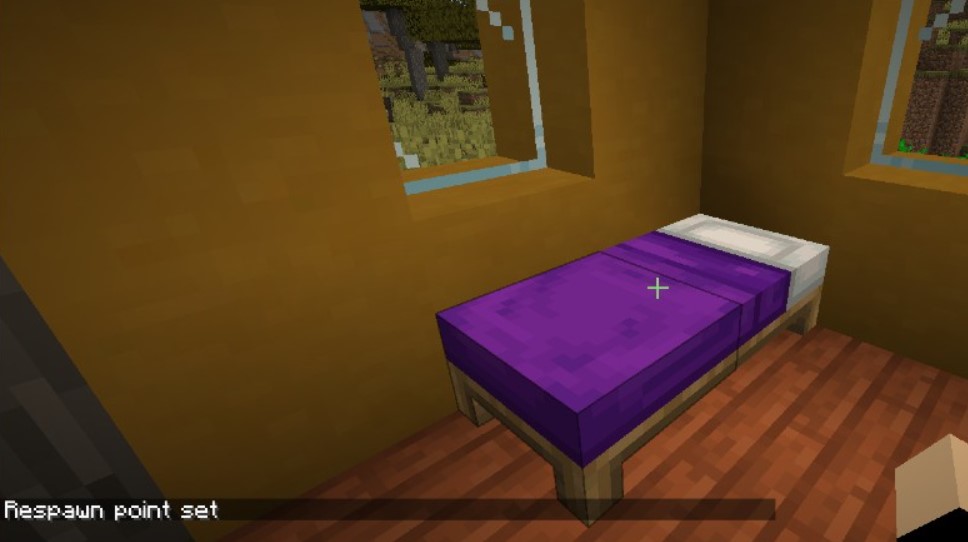
Bed Colors and Whether They Matter
Real talk – the color of your bed does absolutely nothing for spawning. A pink bed sets your spawn exactly like a red one. The 16 colors are pure decoration. Pick whatever matches your build. I’m partial to cyan myself, but you do you.
That said, there’s a fun bit of history baked into beds. Beds explode when you try them in the Nether or the End, right? Well, back during the Nether Update, the devs actually talked about removing that explosive behavior. Jens Bergensten (that’s jeb, one of the leads) mentioned on Bluesky in June 2026 that they kept it because it became such an iconic quirk – and because players literally weaponize bed explosions to fight the Ender Dragon. So that “intentional game design” death message you might’ve seen? It stuck around on purpose. Neat little piece of trivia for your next server chat.
Setting Your Spawn in the Nether With a Respawn Anchor
Okay, so beds blow up in the Nether. Great. So how do you set a respawn point in that lava-soaked nightmare dimension? Enter the respawn anchor.
The respawn anchor is basically the Nether’s answer to the bed. It’s a block that lets you respawn down in the fire realm instead of getting yanked all the way back to the Overworld every time a ghast fireball catches you off guard. If you spend serious time hunting netherite, this thing is a lifesaver.
Crafting it takes a bit of effort, though. You’ll need six crying obsidian and three glowstone. Crying obsidian is the rare stuff – you find it around ruined portals, in bastion remnants, or by bartering gold with piglins. Glowstone hangs from the Nether ceiling in big clusters. Arrange the crying obsidian in the top and bottom rows of a crafting grid, with three glowstone across the middle, and you’ve got yourself an anchor.
But here’s the catch – and there’s always a catch. A freshly crafted respawn anchor doesn’t do anything yet. It needs charging. Hold a glowstone block and interact with the anchor to add a charge. Each anchor holds up to four charges, shown by the little glowing dial on the side. Every time you die and respawn there, one charge burns off. Run out of charges, and you’re back to Overworld respawns.
So the workflow goes like this:
- Place the anchor somewhere safe with open space around it.
- Charge it up with glowstone blocks (blocks, not dust – dust won’t work).
- Interact with it once to set your spawn there.
- Keep it topped up before big expeditions.
One thing that trips people up. Just like a bed, the anchor needs breathing room around it. If the surrounding blocks are obstructed or full of lava when you die, you’ll get that dreaded “you have no home bed or charged respawn anchor” message and end up in the Overworld anyway. Leave a little 3×3 pocket around it. Trust me on this.
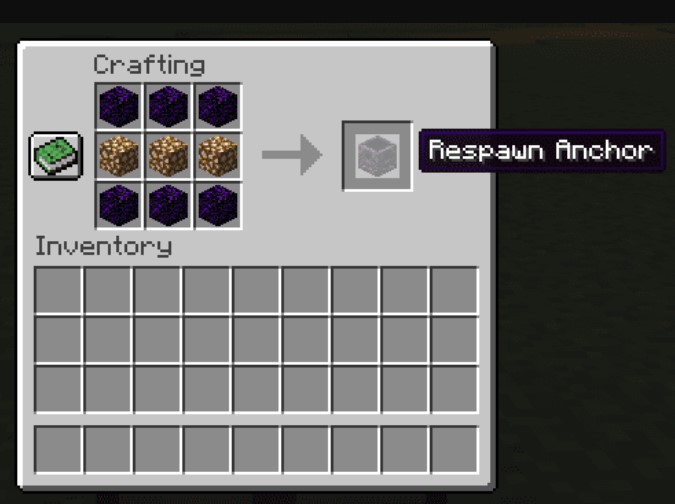
And whatever you do, don’t drag a charged anchor into the Overworld or the End and try to set your spawn with it. It’ll explode, same as a bed in the Nether. The game’s got a sense of symmetry, I’ll give it that. If you’re on Bedrock and want to disable those explosions, there’s a gamerule for it – /gamerule respawnBlocksExplode false – though it still won’t let the anchor actually function outside the Nether. It just stops the fireworks.
| Feature | Bed | Respawn Anchor |
|---|---|---|
| Works in | Overworld | Nether |
| Materials | 3 wool + 3 planks | 6 crying obsidian + 3 glowstone |
| Needs charging | No | Yes, with glowstone |
| Number of respawns | Unlimited | 4 per full charge |
| Explodes in wrong dimension | Yes (Nether, End) | Yes (Overworld, End) |
| Sets spawn on interaction | Yes | Yes |
See how they mirror each other? Same job, different dimension, different upkeep. Once it clicks, you’ll never mix them up again.
How to Set Spawn Point in Minecraft Using Commands?
Now we’re getting into the good stuff for anyone who runs a server or just loves fiddling with cheats in a single-player world. Commands give you total precision. No sleeping, no charging, no crying obsidian runs. Just type and go.
You’ll need cheats enabled, or operator (OP) status if you’re on a server. Once you’ve got that, two commands do the heavy lifting.
- The first is
/spawnpoint. This one sets an individual player’s spawn. Type it plain and it sets your own spawn to wherever you’re standing. Add a player name and coordinates, like/spawnpoint Steve 100 64 -200, and you’ll set that specific person’s respawn to those exact numbers. This command works across every dimension, which is genuinely handy – you can set someone’s spawn deep in the Nether or even the End if you want. - The second is
/setworldspawn. This changes the world spawn for everybody. Stand where you want the new spawn to be, face the direction you want folks looking, and type/setworldspawn. Boom – the whole server now spawns there on first join. You can also feed it coordinates and a yaw angle if you’d rather not walk over there yourself.
Server owners, listen up. There’s a common combo you’ll want. After running /setworldspawn, follow it with /gamerule spawnRadius 0. That second command forces everyone to appear on the exact block instead of scattering across a random area nearby. Perfect for those tidy spawn towns where you want players landing right on the welcome mat.
| Command | What It Does | Scope |
|---|---|---|
| /spawnpoint | Sets one player’s respawn spot | Individual player |
| /setworldspawn | Sets the map’s default spawn | All players |
| /gamerule spawnRadius 0 | Spawns players on the exact block | All players |
| /gamerule respawn_radius | Adjusts spawn area size (Java) | All players |
A quick word on that spawn radius thing, since it confuses a lot of folks. By default, the game spreads new spawns across a small area – about 21×21 blocks in Java, smaller in Bedrock. That’s why you and a friend joining a fresh world don’t always land on the same block. Setting the radius to zero pins everyone to one exact spot. Setting it higher spreads them out more. Handy for minigame lobbies where you don’t want people clipping into each other on spawn.
One more neat trick while we’re here. That compass in your inventory? The plain one that hasn’t been linked to a lodestone? It always points to world spawn. So if you ever set a custom world spawn with commands and then wander off, your compass will guide you right back. Old-school navigation, still works like a charm in 2026.
How to Set Spawn Point in Minecraft on a Server?
Running spawn points on a multiplayer server adds a couple wrinkles worth knowing.
First, communication. If you move the world spawn while people are online, let them know. Nothing’s more jarring than logging in and finding your whole world reoriented around a new spot you didn’t expect.
Second, spawn protection. Servers often have a protected zone around spawn where regular players can’t break or place blocks. If you relocate the spawn, double-check that the protection radius still makes sense. You don’t want new players trapped in a tiny bubble unable to gather their first bit of wood.
For servers running plugins like Spigot or Paper, you’ve got even more options. Plugins can create fancy spawn systems with warps, first-join locations, and per-world spawns. Modded servers on Forge or Fabric have their own spawn mods too – small ones that force everyone to a custom point or drop new players in the middle of a village. If vanilla commands feel limiting for your community, that’s the direction to look.
Honestly, for most small friend-group servers, plain /setworldspawn and /spawnpoint cover 90% of what you need. Don’t overcomplicate it unless your server really calls for it.
What Happens When Your Spawn Gets Blocked?
Let me address the frustrating scenario, because it happens to everyone eventually. You die, you’re ready to pop back at your base, and instead you’re at world spawn with that annoying message about your bed being missing or obstructed. What gives?
A few things can cause it:
- Your bed got destroyed – maybe a creeper, maybe a griefing friend.
- The space around your bed or anchor got filled with blocks.
- Your respawn anchor ran out of charges.
- Something dangerous, like lava, ended up next to your spawn spot.
The fix is usually simple. Keep the area around your bed clear and lit. Don’t build right up against it. And if you’re using an anchor, keep it charged. A stack of glowstone in a nearby chest saves a lot of headaches.
Here’s a slightly annoying quirk in Bedrock Edition specifically. The wiki notes players can sometimes spawn underwater and start drowning if the world spawn lands in a bad spot. So if you’re setting a custom world spawn on Bedrock, pick somewhere dry and solid. Save your players the panic of waking up mid-drown.
Quick Tips to Never Lose Your Spawn Again
- Set your spawn early and often. Every time you build a new base or set up camp far from home, drop a bed and tap it. Costs almost nothing and saves you a marathon walk later.
- Light up your spawn area. A well-lit space stops mobs from wandering in and blocking your respawn. Torches everywhere. Be generous.
- Keep a backup chest by your respawn. Toss in some spare armor, a weapon, and a few snacks. When you die and respawn there, you can gear up fast and go recover your stuff before it despawns. Five-minute timer on dropped items, so speed matters.
- Bring glowstone into the Nether. If you’re setting up anchor spawns, extra glowstone means extra charges. Never leave home without a stack.
None of this is rocket science. It’s just the difference between a smooth run and a frustrating one. Little habits, big payoff.
FAQ
Do I have to sleep in a bed to set my spawn?
Nope. Just right-click the bed once, even in broad daylight. You’ll see “Respawn point set” and you’re done. Sleeping is only needed to skip the night or reset the phantom timer.
Why does my bed explode in the Nether?
Beds only function in the Overworld. In the Nether or the End, interacting with one causes an explosion. It’s built-in behavior. For Nether respawns, craft a respawn anchor instead.
How many times can I respawn with a respawn anchor?
A fully charged anchor gives you four respawns. Each death uses one charge. Recharge it by holding a glowstone block and interacting with the anchor. You can refill it as many times as you like.
What command sets spawn for all players on my server?
That’s /setworldspawn. Stand where you want spawn to be and type it. Add /gamerule spawnRadius 0 right after if you want everyone landing on the exact same block.
Does bed color change anything about spawning?
Not at all. Colors are purely cosmetic. A green bed sets your spawn identically to a red one. Pick whatever looks best in your base.
Why do I keep respawning at world spawn instead of my bed?
Your bed was probably destroyed or the area around it got obstructed. Keep the space clear and make sure the bed itself is still there. On Bedrock, remember only the last player to use a bed respawns at it.
Can I set a spawn point in the End?
Not with a bed or anchor – both explode there. You can force a spawn in the End using the /spawnpoint command with coordinates, though it’s an unusual choice. Most players stick to Overworld and Nether spawns.
Wrapping It Up
And there you have it. Setting your respawn spot in Minecraft comes down to three tools – beds for the Overworld, respawn anchors for the Nether, and commands when you want precise control. Master those and you’ll never again face that long, lonely trek back from world spawn with nothing but your fists.
The beauty of it is how forgiving the system is once you understand it. Tap a bed, charge an anchor, type a command. Small actions that turn a punishing death into a minor inconvenience. That’s the kind of quality-of-life stuff that keeps this game feeling fresh even after all these years and all these updates.
So next time you head out on a big adventure, drop a bed first. Future you, standing safely at base after a nasty fall, will be grateful. Now get back out there and go build something worth respawning next to.
P.S. Amplify the vision of the Lizet Manski team by sharing this post across your social networks and adding it to your bookmarks so you can revisit it whenever inspiration strikes. If you are looking to explore a creative or commercial partnership, feel free to write to us directly – we are always eager to connect with kindred spirits and forward-thinking collaborators. Your support in spreading the word and opening a dialogue is what transforms a single spark into a lasting creative fire.