
How to Hard Reset Switch Without Nuking Your Save Files?
Your Switch has locked up. The screen’s stuck on a black void or frozen mid-Mario, the Home button does nothing, the Joy-Cons might as well be paperweights, and holding the power button is doing precisely sod all. Deep breath. It’s fine. This is one of the most common Switch problems there is, and the fix takes about fifteen seconds.
But here’s where people get themselves into trouble: “hard reset” means two completely different things, and folks routinely search for one and end up doing the other. One is a harmless force-restart. The other permanently deletes everything you own.
You do not want to mix those up. So let’s be really clear about which is which, on both the original Switch and the Switch 2.
The Two Things People Mean by This
Type “how to hard reset Switch” into a search bar and you’ll get a jumble of advice covering both of these without ever explaining the difference:
- Force restart. You hold the power button down until the console physically shuts itself off, then boot it back up. Nothing is deleted. Nothing is changed. It’s the console equivalent of yanking the plug out and putting it back. This is what you want 99% of the time.
- Factory reset. You wipe the console back to how it came out of the box. Games, saves, screenshots, users, Wi-Fi passwords – all gone. This is for selling the thing, or for a corrupted system that genuinely won’t behave.
There’s also a middle option hiding in recovery mode that most people have never heard of, and it’s a lifesaver. More on that shortly.
| What You Want to Do | Which Reset | Does It Delete Anything? |
|---|---|---|
| Console is frozen | Force restart (12-second power hold) | No |
| Weird system bugs that won’t go away | Restore Factory Settings Without Deleting Save Data | Your saves, screenshots and users survive |
| Selling it or trading it in | Restore Factory Settings (full wipe) | Yes. Everything. |
| Console won’t boot at all | Force restart first, then recovery mode | Depends what you pick |
The 12-Second Fix (Start Here, Always)
This works on the original Switch, the OLED, the Switch Lite, and the Switch 2. Same button, same result:
- Hold the POWER button down for 12 seconds.
- That’s it. Don’t tap it. Don’t hold it for three seconds and give up when the Power Options menu pops up – you want to blow straight past that menu and keep holding.
- The screen will go black and the console will die. Give it a couple more seconds if 12 doesn’t do it; some people find it takes a beat longer.
- Then wait a moment, press POWER once, and it boots up clean.
That’s the entire procedure. That’s what “hard reset” means to most people, and it fixes an alarming proportion of Switch weirdness – frozen games, unresponsive Joy-Cons, a console that won’t wake from sleep, a black screen that isn’t actually dead.
Worth knowing: on both consoles, a short press-and-hold of about three or four seconds brings up the Power Options menu instead, giving you Sleep Mode, Restart, and Turn Off. If your console is responsive enough to show you that menu, just pick Restart and skip the force-shutdown entirely. It’s gentler and it does the same job.
The 12-second hold is for when the software has stopped listening.
How to Hard Reset Switch When the Screen Is Completely Black?
Right, this is the scary one. Nothing on screen. No response. It looks properly dead.
Don’t panic and don’t assume it’s bricked. Try this sequence, in order:
- Plug it into power. Official AC adapter, straight into the wall, not through a hub or a dodgy third-party charger. Leave it for at least 30 minutes before you do anything else. A fully drained battery can look identical to a dead console, and a flat Switch sometimes won’t show any charging indicator at all for a while.
- Then do the 12-second hold while it’s still plugged in. Power button, twelve seconds, release, press once.
- Check the dock isn’t the problem. If it only misbehaves docked, the console might be fine and the dock might be the failure. Try it handheld.
- Try a different charger and cable. Cheap USB-C cables fail constantly, and a cable that charges your phone might not deliver enough for a Switch.
If the console still shows nothing after a proper charge and a force restart, you’re into hardware territory, and no amount of button combinations will save you. That’s a Nintendo repair conversation.
Recovery Mode: The Bit Nobody Tells You About
Now we get to the useful part.
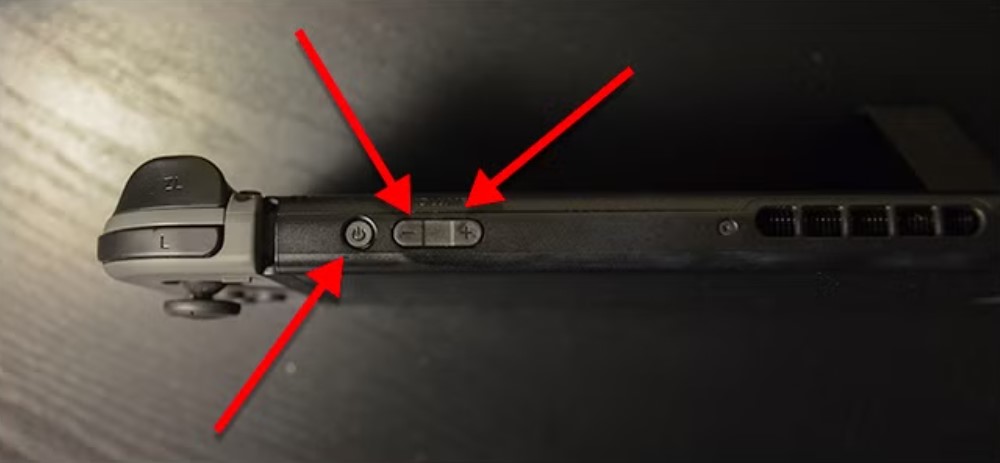
Both the original Switch and the Switch 2 have a Recovery Mode – a boot menu that lives below the operating system. It’s how you fix a console that’s too broken to fix itself, and it’s how you factory reset one that won’t even reach the Home menu.
The button combo is identical on both generations:
- Power the console off completely. Not sleep mode – off. Hold POWER for a few seconds, then pick Power Options and Turn Off. If it’s frozen, do the 12-second hold first.
- Hold down both volume buttons – the (+) and the (−) on the top edge – at the same time.
- While still holding them, press POWER once.
- Keep holding the volume buttons until the Recovery Mode menu appears on screen.
That last step is where most people fail. They let go too early, the console boots normally, and they assume the combo doesn’t work. Hold the volume buttons the whole time. Don’t release them until you’re actually looking at the menu.
Two important caveats. Recovery Mode cannot be entered from sleep mode – the console must be fully powered down. And you can’t get to the Home menu or launch a game from Recovery Mode, so the only way out is to power off and boot normally.
If you’ve got a Parental Controls PIN set, it’ll ask for it before letting you do anything destructive. Which is exactly the point of a Parental Controls PIN, so, fair enough.
The Middle Option That Saves Your Saves
Here’s the thing I actually want people to know, because it gets buried in every guide.
In Recovery Mode, you’ll find an option called Restore Factory Settings Without Deleting Save Data.
Read that again. It resets the console – clears out the system errors, the corrupted settings, the stuff that’s making it misbehave – while keeping your save data, screenshots, videos, and user information intact.
This is the option to reach for when your console is bugging out and you can’t figure out why. It’s a nuclear reset for the system, without touching the stuff that actually matters to you. Nintendo’s own support pages spell it out plainly, and yet an enormous number of people go straight to the full wipe out of panic and lose years of progress they didn’t need to lose.
Don’t be that person.
There’s one asterisk, and it’s Switch 2 specific. On Switch 2, software stored on a microSD Express card becomes unusable after this reset and needs re-downloading. Your screenshots and videos on that card are fine. Just the games break, and only until you pull them down again.
| Recovery Mode Option | What Survives | What Doesn’t |
|---|---|---|
| Update System | Everything. It just installs firmware | Nothing |
| Restore Factory Settings Without Deleting Save Data | Save data, screenshots, videos, user info | Installed software, system settings. (Switch 2: microSD Express software needs re-downloading) |
| Restore Factory Settings | Nothing on internal storage | Games, saves, users, settings, screenshots – the lot |
The Full Wipe (and When You Actually Need It)
Okay. You’re selling it, or trading it in, or you’ve genuinely exhausted every other option. Time for the real thing.
You’ve got two routes.
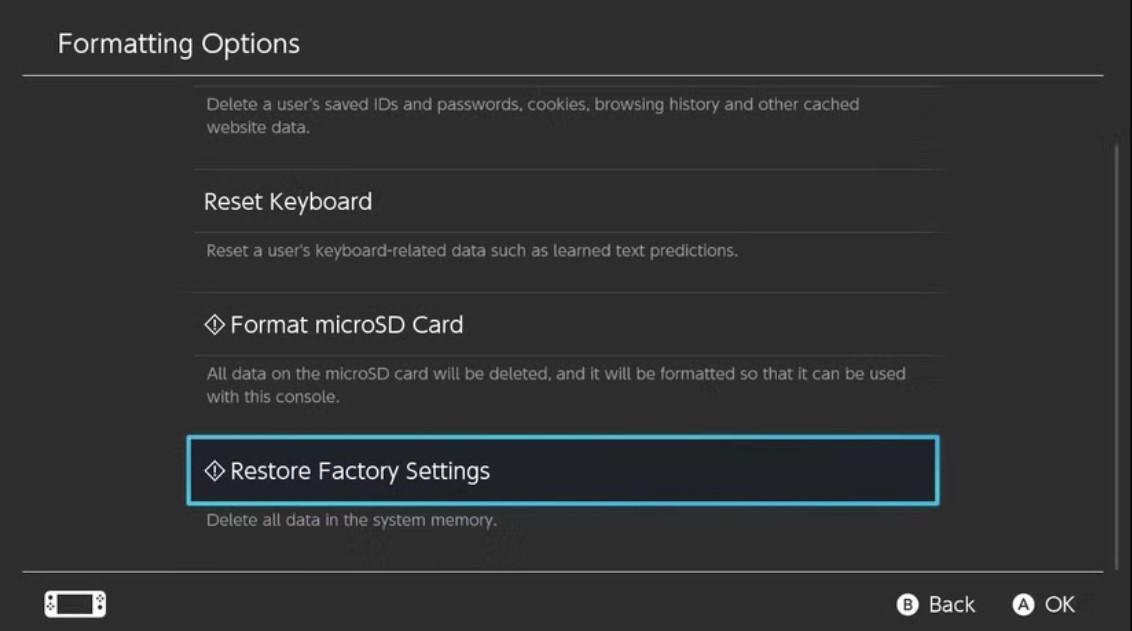
Through the settings menu – the normal way, if your console still works. On the original Switch, head to System Settings, scroll down to System, and find Formatting Options, then Initialize Console. On Switch 2, it’s System Settings, then System, then Data-Clear Options. Nintendo renamed the menu between generations, which is exactly the kind of small change that makes people think their console is broken. It isn’t. It’s just called something else now.
Through Recovery Mode – the way that works even when the console won’t boot properly. Get into Recovery Mode with the combo above, pick Restore Factory Settings, read the warning screens (actually read them), and confirm.
When it’s done, the console is back to its out-of-box state. You’ll be setting up Wi-Fi and signing in from scratch like it’s launch day again.
Here’s what happens to your stuff:
- Digital games come back. Sign into your Nintendo Account and re-download everything you own. Purchases are tied to the account, not the console.
- Cloud saves come back – but only if you had Nintendo Switch Online. Save data restores automatically once you’re signed back in.
- Local-only saves are gone forever. No NSO subscription, no cloud backup, no recovery. And a reminder that stings every year: some games don’t support cloud saves at all, including a few big ones. Check before you wipe.
That last point is the one that ruins people’s weekends. Take thirty seconds and confirm your important saves are actually backed up before you pull the trigger.
How to Hard Reset Switch Before You Sell It?
Wiping the console isn’t quite enough on its own. There’s an account step that people forget, and it causes real headaches for the buyer.
Before you factory reset a console you’re selling:
- Deregister it as your primary console for your Nintendo Account, or sign out of the account properly. Otherwise the buyer inherits a console still tied to your account, and you inherit a very awkward support ticket.
- Transfer or back up your saves – cloud backup via NSO, or a system transfer to your new console if you’re upgrading.
- Pull the microSD card out. Obvious, but people forget, and there’s a decent chance your screenshots are on it.
Then wipe. Then hand it over.
What a Hard Reset Won’t Fix?
Let’s be honest about the limits here, because the internet oversells this.
A force restart fixes software hangs. That’s its whole job. It will not fix drifting Joy-Con sticks, a cracked screen, a dock that’s stopped outputting video, a battery that won’t hold charge, or a console that’s been swimming.
A factory reset fixes corrupted system software. It’s a real tool for genuinely weird persistent bugs. But it’s an enormous hammer, and if your problem is “one game crashes sometimes,” the answer is probably to delete and reinstall that game, not to wipe the entire console.
The order of escalation should always be:
- Restart from the Power Options menu.
- Force restart with the 12-second hold.
- Check for a system update.
- Delete and reinstall the misbehaving game.
- Restore Factory Settings Without Deleting Save Data.
- Full factory reset.
- Nintendo repair.
Most problems die somewhere around step two. Almost none of them make it past step five.
FAQ
How do I force restart a frozen Switch?
Hold the POWER button down for 12 seconds until the console shuts off, then press POWER once to turn it back on. Nothing gets deleted.
Will a hard reset delete my games?
A force restart won’t touch anything. A factory reset deletes everything on internal storage. Those are two different things, and the 12-second hold is the harmless one.
How do I get into Recovery Mode?
Power the console fully off, hold both volume buttons (+ and −), press POWER once, and keep holding the volume buttons until the Recovery Mode menu appears. Same combo on both the original Switch and Switch 2.
Can I reset my Switch without losing save data?
Yes. In Recovery Mode, pick Restore Factory Settings Without Deleting Save Data. Your saves, screenshots, videos, and user info all survive.
Where’s the factory reset in the settings menu?
Original Switch: System Settings → System → Formatting Options. Switch 2: System Settings → System → Data-Clear Options. Same function, different name.
My Switch screen is completely black. Is it dead?
Probably not. Plug it into an official charger, leave it 30 minutes, then do the 12-second power hold. A fully drained battery looks exactly like a dead console.
Do I get my games back after a factory reset?
Digital purchases redownload from your Nintendo Account. Cloud saves restore if you had Nintendo Switch Online. Local-only saves are gone permanently – and some games don’t support cloud saves at all.
That’s Your Console Sorted
Nine times out of ten, this whole article boils down to one line: hold the power button for twelve seconds. That’s the fix. That’s what people mean when they ask how to hard reset Switch, and it’s completely safe, on every model Nintendo has ever shipped.
Everything else – recovery mode, the save-preserving reset, the full wipe – is there for the rarer, uglier problems. Just remember the ladder. Start small, escalate slowly, and don’t reach for the factory reset because a game froze once.
Your save files will thank you.
P.S. Please show your support for our work by sharing this post across your social media networks and adding this content to your bookmarks. Your online engagement is vital to our growth, but we are equally excited to connect with you beyond the screen. Should you seek a creative or commercial collaboration, do not hesitate to write to the Lizet Manski team directly so we can start building something amazing together.