
Steam Unable to Sync: Read This Before You Click “Launch Anyway”
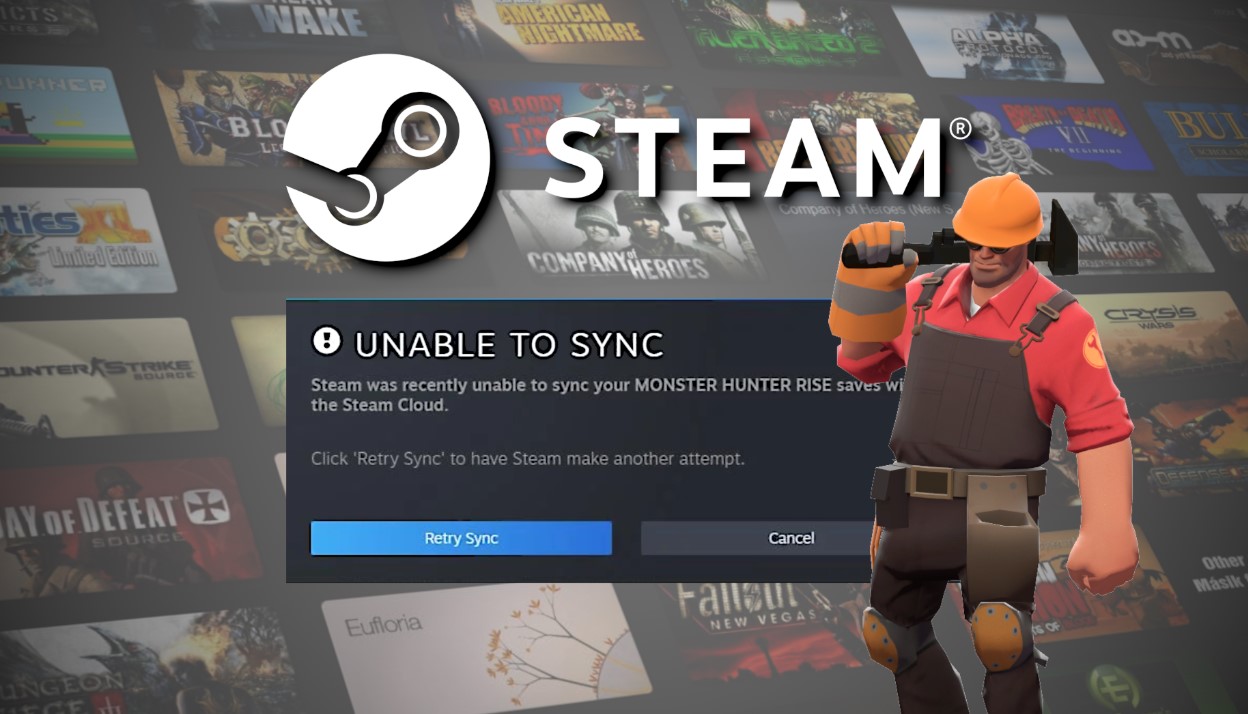
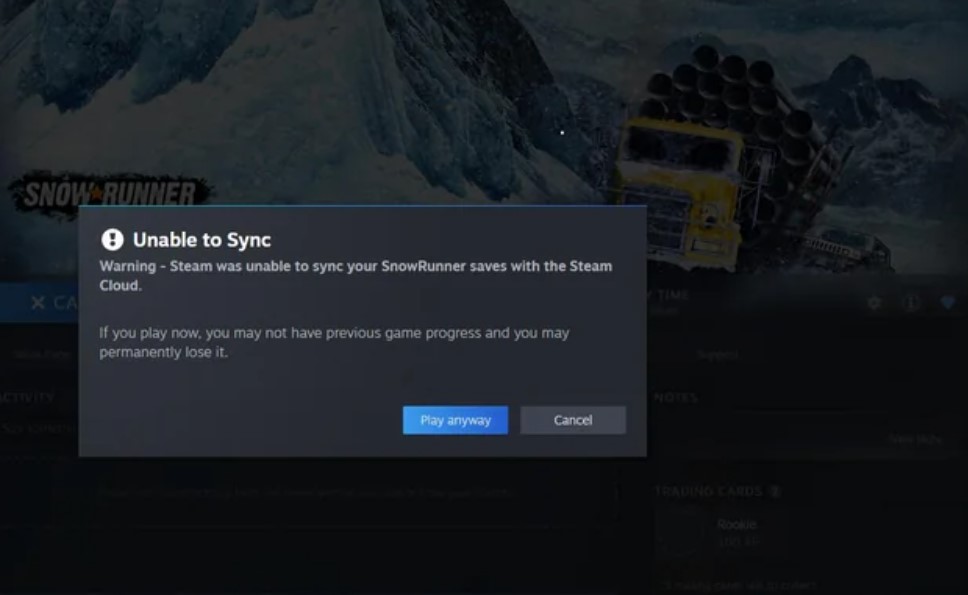
There’s a button in that error dialog that will quietly delete hours of your life, and it’s the one most people reach for. When Steam throws up the “unable to sync” warning, it offers you a choice. Retry, or launch anyway. That second option means “proceed with whatever’s on this machine and overwrite the cloud copy when I’m done.” If the machine you’re sitting at has an older save than the one on Valve’s servers, you just agreed to throw away everything in between.
So: don’t click it. Not yet. Nothing about this error is urgent, and the save you’re worried about is almost certainly still sitting on Steam’s servers, intact, waiting for you to sort out whatever’s blocking the handshake.
This guide is organized differently from most. Instead of a numbered list of fixes you grind through blindly, it starts with the symptom you’re actually seeing – because “Steam unable to sync” covers about five completely unrelated problems, and the fix for one can make another worse.
What the Error Actually Means?
Quick mechanical grounding, because it explains most of what follows.
Steam Cloud doesn’t sync continuously while you play. For the vast majority of games, it works on a launch-and-exit model: files come down from the servers before the game starts, and go back up after the game closes. That’s the whole cycle.
That timing detail is the source of most sync disasters. If a game doesn’t close cleanly – crash, forced shutdown, sleeping the device mid-session – the upload half of the cycle never happens. Steam knows the local files changed but never got them to the server, and the next time you open that game anywhere, it flags the mismatch.
Second thing worth knowing: the storage quota is set per game, by the developer, not by Valve for your whole account. Each cloud-enabled title has its own byte limit and file-count limit configured by whoever made it. This is why a single game can hit a wall while your other 200 sync perfectly, and why “clear space in my Steam Cloud” isn’t usually the answer people think it is.
The files themselves live locally in your Steam folder, under userdata, then a numeric ID for your account, then a folder numbered for the game, then remote. Remember that path – it becomes important later.
Symptom Triage
Find your row first. It’ll save you twenty minutes of irrelevant troubleshooting.
| What You’re Seeing | Most Likely Cause | Where to Go |
|---|---|---|
| Every game shows the error, even ones without cloud saves | Client bug or offline mode quirk | Symptom A |
| One specific game, retry does nothing or hangs at 100% | Cached metadata or oversized save files | Symptom B |
| Error started after switching between Deck and PC | Suspend instead of proper exit | Symptom B, Deck section |
| A dialog offering two saves with different timestamps | Genuine conflict, both versions exist | Symptom C |
| No error, but your progress is older than it should be | Silent stale sync | Symptom D |
| Error across all games, suddenly, for everyone | Valve-side outage | Not your problem |
Symptom A: Every Game Shows It, Including Ones Without Cloud Saves
If the warning appears on titles from 2003 that never had cloud support, and on non-Steam games you added to your library, this isn’t a save problem at all. It’s the client.
This particular bug has a long history. It surfaced badly after a client update in mid-2022, where players found the warning appearing even with Cloud synchronization switched off entirely at the account level. Valve pushed fixes, some of which helped and some of which didn’t, and variants of it have resurfaced periodically ever since – often after a redesign or a major client push.
The tell is that your saves are fine. People in those threads consistently reported that their progress synced correctly despite the error firing on every single launch. It’s noise, not damage.
What actually helps:
- Toggle Cloud synchronization off at the account level in Settings, restart Steam completely, then switch it back on. This forces the client to re-register the setting rather than reading a stale value.
- If you’d previously disabled Cloud and the error persists anyway, that’s the exact scenario the 2022 patches targeted, and a full client restart is the reliable workaround.
Why Steam Unable to Sync Appears in Offline Mode
Special case, and it’s been reported as a bug repeatedly.
Launch Steam in offline mode and the first boot of any game will often throw the sync warning – in Big Picture mode it shows as “Steam Cloud Error” instead. It fires unconditionally, regardless of whether Cloud is enabled or disabled, because the client can’t reach the servers to confirm anything.
There’s no elegant workaround. Dismiss it and play. Your local files are untouched, and Steam is designed to queue the sync for the next time it reconnects – a behavior Valve added specifically so that disconnecting on game exit doesn’t strand your files.
Just be disciplined about one thing: if you’ve played offline on one machine, get that machine back online and let it sync before you open the same game anywhere else. That’s how offline sessions turn into conflicts.
Symptom B: One Game, Stuck Forever
This is the classic. The library shows “out of sync” or “unable to sync” for a single title, you click retry, and either nothing visible happens or the progress bar parks itself at 100% and stays there.
Work through these in order, because they escalate in effort:
Clear the download cache. Settings, then Downloads, then Clear Download Cache at the bottom. It flushes partial downloads and cloud file metadata without touching your games or saves. Steam restarts and asks you to sign in again. This resolves a genuinely large share of stuck-upload cases, and community reports going back years point to it as the first thing that works.
Toggle Cloud for that one game. Right-click the game, Properties, General tab, uncheck the Cloud synchronization box, close the window, reopen, check it again. This is the single most-recommended fix on Steam’s own discussion forums for individual games misbehaving, and the reason is that it forces the client to rebuild that game’s sync state from scratch.
Check the size of your saves. Some games generate enormous save files – colony sims and city builders are notorious, and modded saves multiply the problem. There are long-running forum threads about titles where the sync attempt saturates the entire internet connection for minutes before timing out. If that’s your game, you may simply be over the per-game quota the developer set, and no amount of retrying will fix it. Trim old save slots.
Verify integrity of game files. Right-click, Properties, Installed Files, Verify. Less likely to be the culprit, but it’s non-destructive and rules out corruption.
Steam Unable to Sync on Steam Deck: The Suspend Trap
Deck owners who also play on a desktop hit this more than anyone else, and there’s a specific behavioral cause.
Suspending the Deck is not the same as closing the game. When you press the power button mid-session, the game stays running in a frozen state and the exit-time upload never fires. Your desktop then opens the same game, pulls the older cloud save, and now two divergent versions exist.
The habit that prevents it:
Fully quit the game on the Deck before switching devices. Then wait in the library and confirm the cloud indicator next to the game has settled into a normal state rather than spinning or showing a warning. Only then open it elsewhere. On the desktop side, restarting Steam before launching forces a fresh pull rather than relying on cached state.
There’s a second, sneakier Deck issue worth knowing about. Some games store saves in different locations depending on whether they’re running natively on Linux or through Proton. Players have reported persistent sync errors across Deck and PC that disappeared entirely once they forced the game to run through Proton on the Deck, aligning both machines on the Windows save path. If a specific game fails between Deck and desktop while everything else works, check its compatibility setting.
Symptom C: The Conflict Dialog With Two Timestamps
This one isn’t an error. It’s Steam doing its job.
When the client finds two versions of your save that have both changed since they last agreed, it stops and asks you which to keep. It shows you the local copy and the cloud copy, each with a timestamp and often a file size.
How to read that dialog properly:
- Compare timestamps first, not file sizes – bigger doesn’t mean newer or better.
- Think about which machine you last actually played on, not which one you’re sitting at now.
- Pick the cloud version when you’re unsure, since that’s usually the copy that couldn’t reach your other device.
- If the timestamps are within minutes of each other, one of them is probably an autosave from a session you abandoned.
- Never pick blind under time pressure – closing the dialog and dealing with it later costs you nothing.
A hard truth: whichever one you don’t pick is gone. There’s no undo, no recycle bin, no support ticket that recovers it. Which is why the backup step further down matters so much.
Symptom D: Saves Silently Reverting
The nastiest variant, because nothing warns you. The cloud icon looks healthy, the game opens, and you’re an hour or two behind where you left off.
This usually means the sync direction went the wrong way – an older local copy got pushed up and overwrote the good one, most often because somebody clicked Launch Anyway on a machine that was behind.
There’s no clean fix after the fact. Valve doesn’t offer version history for cloud saves, and once an overwrite propagates, the previous state is unrecoverable through Steam. What you can do is stop it from happening again, which means treating the warning dialogs as genuine stop signs rather than obstacles.
The Fix Ladder, Ranked by Risk
Work top to bottom. Never skip ahead because a video told you to.
| Fix | Effort | Risk to Saves |
|---|---|---|
| Check whether Steam’s servers are down | Seconds | None |
| Restart Steam fully, including background processes | A minute | None |
| Toggle Cloud off and on for the affected game | A minute | None |
| Clear the download cache | Two minutes | None |
| Verify integrity of game files | Varies | None |
| Copy your local save folder somewhere safe | Five minutes | None, and prevents all others |
| Repair the Steam library folder | Five minutes | Low |
| Run Steam as administrator | A minute | Low |
| Delete the game’s folder inside userdata | Two minutes | High – destroys local save |
| Reinstall Steam | Half an hour | Medium, don’t start here |
That third-from-bottom row is where people get hurt. Deleting the userdata folder for a game does often clear a stubborn sync state, and it’s recommended constantly online – but it wipes the local copy. If the cloud copy is the stale one, you’ve just destroyed the good version.
Back Up the Local Save First. Always.
Sixty seconds of work that makes every other step reversible.
- Close Steam entirely, and check Task Manager for leftover background processes.
- Open your Steam folder, then
userdata, then the numeric folder for your account. - Find the folder matching the game’s app ID – you can grab that number from the game’s Steam store URL.
- Copy the whole folder to your desktop, a USB stick, anywhere outside the Steam directory.
- Only then try anything on the destructive end of the ladder.
Do this and the worst case becomes an inconvenience instead of a loss. It’s also worth doing preemptively for any long-running save you’d genuinely mourn.
When It Genuinely Isn’t Your Fault
Some of the time the problem is entirely upstream, and no amount of cache clearing will touch it.
- Valve-side outages happen, and historically cloud syncing has broken during and after them, with function returning once servers recovered.
- Per-game quotas set by developers can be too small for heavily modded or late-game saves, which is a title-specific problem, not an account one.
- Antivirus and firewall software occasionally blocks Steam’s sync traffic, particularly after a security suite update.
- Network-attached libraries on NAS or mapped drives introduce permission and latency issues Steam handles poorly.
- The game itself may simply have a broken cloud implementation – check its own discussion hub before blaming your setup.
If the whole internet is complaining simultaneously, sit tight. Play something offline, keep your saves local, and let it resolve.
FAQ
What does “Steam was unable to sync” actually mean?
Steam couldn’t reconcile your local save files with the copies on its servers, usually because an upload failed or two versions diverged.
Should I click “Launch Anyway”?
Not unless you’re certain the machine you’re on has the newest save. It overwrites the cloud copy when you exit.
Where are my Steam Cloud saves stored locally?
Inside your Steam folder, under userdata, then your account ID, then the game’s app ID, then remote.
Does clearing the download cache delete saves?
No. It only flushes temporary download and metadata files. You’ll be signed out and Steam will restart.
Why does the error appear on games without cloud support?
That’s a known client-side bug that has resurfaced several times. Your saves aren’t affected.
Can I recover a save that got overwritten?
Not through Steam. There’s no version history for cloud saves, which is why local backups matter.
Why does it keep happening between my Deck and my PC?
Almost always because the game was suspended rather than closed on the Deck, so the upload never ran.
The Error Is Annoying. The Panic Is What Costs You.
Here’s the pattern I keep seeing in forum threads going back years: somebody hits the sync warning, gets frustrated after two retries, clicks Launch Anyway to get into their game, and posts a much sadder message four hours later.
The error itself is almost never the thing that destroys a save. The impatient response to it is.
So build two habits. Copy the userdata folder for anything you’d hate to lose, and treat every sync dialog as a question worth reading properly rather than a popup to dismiss. Do those two things and “unable to sync” drops from a crisis to a mild irritation you clear in about ninety seconds.
Your save is fine. Go make tea, restart the client, and try again.
P.S. If this spared you a Launch Anyway you’d have regretted, share it on X, Reddit, or wherever your gaming group lives – small independent writing only travels when readers carry it, and one post does more than any ad we could afford. Bookmark it as well, since Steam client updates keep reshuffling which of these fixes matter, and we revise this page rather than replacing it. And if creative or commercial collaboration is what brought you here, write to the Lizet Manski team directly – we sync on the first try.